

Content Authoring
To create excellent content, your team needs excellent communication and collaboration tools. Storyblok provides specialized tools to help teams engage the right teammate at the right time:
- Workflows transition content through the publication process.
- Releases coordinate and schedule grouped content.
- Pipelines offer a safe content preview environment.
- Locking protects content from accidental overwrites.
Learn how to get the most out of Storyblok’s content authoring tools.
Collaboration tools
Section titled “Collaboration tools”Storyblok offers two efficient tools for editing and discussing content: workflows and comments.
Workflows
Section titled “Workflows”A workflow is a set of rules that controls how stories move from draft to publication. Storyblok offers a Default workflow with three stages: Drafting, Reviewing, and Ready to Publish.
Workflow stage | Description |
|---|---|
None | New stories (where no custom workflow applies) and stories whose workflow stage was deleted |
Drafting | Stories in development |
Reviewing | Stories ready for an editor's review |
Ready to Publish | Stories ready for publishing |
When a user changes a story's workflow stage, they can assign a team member (one or more users or roles) to complete the required work, with an option to notify assignees by email.
Users can review their assignments in the Dashboard.
Learn more about managing and using workflow in the Workflows manual.
Comments
Section titled “Comments”Use comments to start discussions with team members, and leave notes for yourself.
- To add a comment, select Start a discussion next to a field in the Visual Editor.
- To review the discussions, open the Comments tab in the side toolbar.
Users can review their mentions and discussions in the Dashboard.
Learn how to tag teammates and manage discussions in the Visual Editor manual.
Scheduling tools
Section titled “Scheduling tools”Storyblok lets you automate story publication.
- For single story scheduling, select More Options (next to Publish), choose Schedule Publishing, and set the date and time.
- To schedule multiple stories, use the Releases App
To review all scheduled stories, open the Content section and filter by Scheduled Stories.
Releases
Section titled “Releases”A release is a group of content changes scheduled for publishing. Admins can install the Releases App from the App Directory.
Use the Releases App to publish bundled changes, create campaigns, manage content collections, and create advanced workflows.
In the Content section, select + New release. Fill in the name, date and time, and set access permissions. Once saved, the release opens in a new tab, and you can select which stories to include.
Pipelines
Section titled “Pipelines”A pipeline is a one-way process where content is editable only in the Preview stage and locked in all other stages. To review content before publishing it to production, define one or more stages with dedicated access tokens.
Admins can install the Pipelines App from the App Directory.
Term | Definition |
|---|---|
Pipeline | Each space can have only one pipeline. Every pipeline consists of at least two stages. Only the first stage, Preview, is editable. |
Preview Stage | This is the default stage. At this stage, content can be edited or pushed to another stage. |
Pipeline Stage | Stories in the pipeline stage are locked. The main function of this stage is to preview locked content. |
Custom stages
Section titled “Custom stages”To create a stage, open Settings → Pipelines. Enter a name and select Add.
Option | Description |
|---|---|
Name | Name of the pipeline stage |
Preview URL | Overrides the URL of the Visual Editor |
Source of Sync | Defines the deployment stage. |
To move content to the next stage, open the Content section, select the next stage, and choose + Deploy from source.
Release coordination
Section titled “Release coordination”The Pipelines App was designed to complement the Releases App. To send a release to a pipeline stage, open the release and select Deploy from source. This enables preview stages for unfinished releases.
Workflow coordination
Section titled “Workflow coordination”Workflows and pipelines work in tandem to provide guardrails for your editorial and deployment processes.
When a pipeline stage changes, it resets the workflow of all affected stories.
If a story in a pipeline stage is marked as Ready to Publish, it proceeds to the next pipeline stage after deployment.
Conflict management tools
Section titled “Conflict management tools”Storyblok provides two tools to manage editing conflicts.
Detection
Section titled “Detection”When two users try to save changes to the same story at the same time, Storyblok displays a warning to the user who saved second.
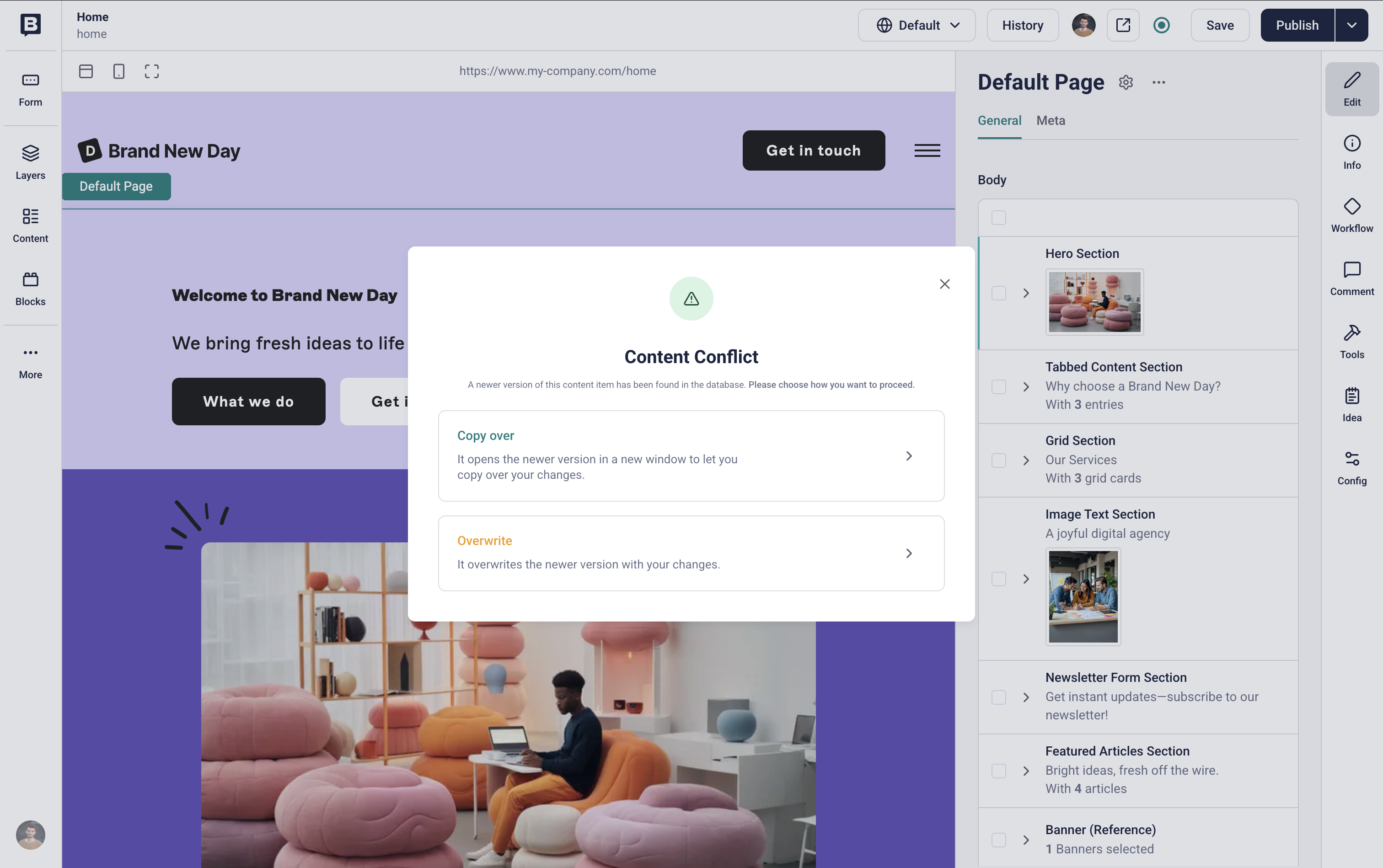
Conflict warning in the Visual Editor.
The user can then either copy their teammate's changes or overwrite them.
Locking
Section titled “Locking”To protect content from accidental overwrites by different editors, Storyblok provides a lock feature.
To enable locking, install the Content Locking App from the App Directory.
To allow editing after a period of inactivity, open Settings → Content Locking, select Automatically unlock a Story after user inactivity, and select an interval. To avoid content loss, enable Automatically save the Story before unlocking.
Was this page helpful?
This site uses reCAPTCHA and Google's Privacy Policy (opens in a new window) . Terms of Service (opens in a new window) apply.
Get in touch with the Storyblok community